Featured Free Software

Showing posts with label iPhone. Show all posts

Friday, November 20, 2009

Vampires Everywhere!

IMG_0550 This is one of those iPhone apps that looks simple on the surface, but is potentially useful beyond what you might expect. Yes, the app store is chock full of picture manipulation apps, but Peter Facinelli’s (one of the Twilight series movie stars) Vampire Transformer (by 211me.com) provides some clever pix editing tools, a good menu system, and adds social network sharing to the mix. It was indeed fun turning my wife into a vampiress...and a hot one, too if I do say so…

This will be a pretty straight-forward write-up, because the app is pretty straight-forward itself. The premise is to select 2 pictures (one in the foreground, and one in the background). The pictures can be from your camera roll, or the included set of vampire models. You then use your finger to wipe away pixels in the forgoround (or add them back in) to blend the 2 layers together. The result can be pretty amazing, and depending on how much of an artist you are, you can really spice it up. In my case, in like 5 minutes I had transformed my wife (already hot), into a seriously sexy vampire!

IMG_0541 IMG_0543 IMG_0544

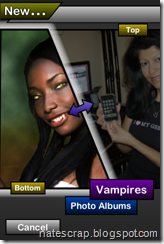
After you start Vampire transformer up and start a new vampire, you can select from a gallery of model pix (or camera roll) for the top/bottom images to be overlaid. The image editor does not start in the mode for selecting/aligning the images by default (which might be a small tweak for the developers to consider). As the images likely need to be aligned and resized for facial structure and features to match up, you will want to activate this mode first (see the main left toggle soft-button with arrows above). Another good tip, of course, is to pick images that have a similar facial profile or perspective, then do much of the fine-tuning while zoomed in. You can select between the layers, crop the picture, move image position, and pinch zoom while the arrows are displayed. Once you have the front and rear images properly aligned, you can then start your transformation.

IMG_0523 IMG_0550The pix editor will allow you to take a whole swath off the front image with a finger swipe (using the transform mode). It takes a little trial and error to tweak the images enough to be convincing. In my case, I started by clearing an area around the eyes and mouth, so the vampire’s features behind could show through clearly, and then changing the editor to the more subtle paintbrush mode (turn off brush strength), which will let you add a section of the front image back in gradually over an area. You can easily undo your actions by selecting the right-side curly arrow. The editor is like a mini photoshop, and you can come up with some startling imagery if your blends/changes are subtle. Check it out below…

IMG_0565 IMG_0560 IMG_0562 IMG_0563 IMG_0564

Share your Vampires

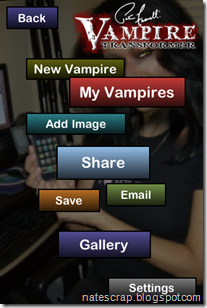
VT let’s you share your vampirical (I made that word up) creations via e-mail or through social networking sites like twitter or facebook, and also provides an online gallery of vampire pix that you can post up to as well. You can use VT to launch an e-mail to all your friends with your vampire creations attached. See below…

IMG_0555 IMG_0533 IMG_0538 IMG_0539

IMG_0554Vampire Transformer, as I said, on the surface may seem like just another humorous picture tweaking app, but I can certainly see value beyond that. I for one, can use this to blend and morph images for my blog posts (totally non-vampire related). I could see field forensic or CSI people using apps similar to this to compare crime scene photos to pictures in an international database of missing persons (overlaid on each other). Or for example, medical procedures like cosmetic surgery (before and after) comparisons could be tested out on your phone before actually visiting your doctor. Of course, VT won’t do stuff like that today, but in the future we will see more advanced apps like this, I am sure. It is amazing the power represented by the iPhone. iPhone apps (even the entertainment based apps like VT) are just beginning to scratch the surface of the capability that the iPhone can bring (or the iPod) to our lives! Go check out Peter Facinelli’s Vampire Transformer (in the app store), especially if you are a fan, or even maybe just want to create a few sexy vampires of your own! Maybe in the future, people will use something very much like it to plan their next cosmetic surgery…

AppStore

Thursday, March 12, 2009

Icecasting with Ubuntu and Radio Shark

Lately, I've really been geeking out on Ubuntu and a radio tuner device my kids bought me last year called a Radio Shark. This is the 3rd installment of a series of tutorials on how to get the Radio Shark to function in Ubuntu Linux. The device was actually designed for MAC and Windows, but some serious Linux users have found ways to make it work with Linux. In my endeavors to get Ubuntu at least as functional as Windows on my dual-boot laptop, I've included these instructions in case anyone else out there is trying to similarly get all their devices working. To learn the basics of getting RS to play and record, see my last 2 posts. This post will be a little more advanced, in that we will set up Ubuntu to stream the RS output on the web as an audio stream. Yeah, cool eh? Stream your favorite local radio station to anywhere on the net...

**Updated March 23, 2009 for iPhone/iPod player info...see below

First, check out the previous 2 posts, here and here, to get the background needed to get RS functional in Ubuntu (at least enough to play). If you just want a quick tutorial on streaming via icecast and darkice in Ubuntu, you could use this as a quick guide, but there's a ton better on the web (i.e. search for "how to use icecast").

Step 1: Open Synaptic Manager in Ubuntu and do a search for "icecast"


Select icecast2, and darkice packages and accept all supporting files when Synaptic auto-adds the required files, and then install them.

Step 2: Setup icecast.xml (/etc/icecast.xml), by opening in your favorite editor. It's important to configure all the authentication sections, especially the default passwords that are all set to "hackme". You also need to set your actual <hostname> value to your computer name. See some examples below:

<authentication>
<!-- Sources log in with username 'source' -->
<source-password>SomePassword</source-password>
<!-- Relays log in username 'relay' -->
<relay-password>SomePassword</relay-password>

<!-- Admin logs in with the username given below -->
<admin-user>Barney</admin-user>
<admin-password>SomePassword</admin-password>
</authentication>


Step 3: Setup darkice. Touch a file into the /etc directory called darkice.cfg, and edit the values for your configuration. I provided an example of mine below:

[general]
duration = 0
bufferSecs = 5
reconnect = yes

[input]
device = /dev/dsp1
sampleRate = 22050
bitsPerSample = 16
channel = 2

[icecast2-0]
bitrateMode = vbr
format = vorbis
bitrate = 32
quality = 0.8
server = localhost
port = 8000
password = Somepassword
mountPoint = example-complex.ogg
name = The Eagle
description = Classic Rock
url = http://home-laptop
genre = misc
public = yes

Step 4: Tune the radio shark, start icecast2 and darkice. In the terminal console enter the following commands (or add a bash script that does this):

$ sudo shark -fm 106.9
$ sudo /etc/init.d/icecast2 start
$ sudo /usr/bin/darkice -c /etc/darkice.cfg


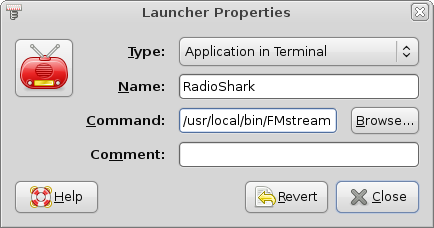
In my case, I tweaked the earlier posted FMstart script and launcher shortcut to include the streaming commands instead. You could also simply initialize the icecast service on startup, run your script, or use cron to execute your scripts at preset times to play, stream or record when you like.


Step 5: Check that icecast/darkice is presenting your stream by navigating to your server's address using Firefox: http://localhost:8000. You can also monitor your streams/listeners here...


Step 6: Allow Clients to access your streaming server

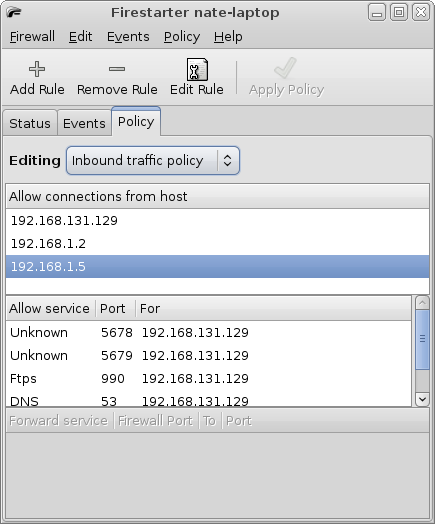
NOTE: In this example, I provide a simple way to stream music on your home network. It could work similarly on a front-facing internet server, but I do not include the specific steps to do this. Properly configuring firewalls in Linux is well beyond the scope of this writeup, especially to protect resources on the internet. If you run the built-in Ubuntu firewall (iptables), you can use "firestarter" GUI to tweak it to allow it to allow local traffic easily, otherwise your clients will likely not see the stream.


I simply set it to allow clients on my home network (192.168.1.0 private network address), but a more involved configuration is required if you use, for instance, NAT (network address translation) to protect your internal addresses and wish the streams to be allowed across the internet. You could allow incoming connections to port 8000, for example, but you should consult security documentation thoroughly to understand the risks of exposing any home computers to outside users in this manner.

Step 7: Play back your streams. In my case, I used the excellent, free TCPMP (The Core Pocket Media Player...Windows versions of this great A/V player are also available) running on my Windows Mobile device, as I find it plays almost any type of media. In this case, the stream is formatted as ogg-vorbis--and presented as a SHOUTcast stream--not every player can natively play this kind of stream. Tuning in should be as easy as connecting to your home network via Wifi and inputting the full URL into your player...i.e. http://yourserver:8000/example-complex.ogg


Supprted players include (from the icecast homepage) below. To learn more about icecast and darkice go here and here...
foobar2000 (mp3 + ogg vorbis) Windows 98/NT/2000/XP http://www.foobar2000.org
winamp 2.x, 5.x (Not 3.x)(mp3 + ogg vorbis) Windows 98/NT/2000/XP http://www.winamp.com
XMMS(mp3 + ogg vorbis) Unix http://www.xmms.org
Zinf(mp3 + ogg vorbis) Unix/Windows http://zinf.sourceforge.net
MPlayer Windows 98/NT/2000/XP Unix Mac OSX http://www.mplayerhq.hu
Xine Unix http://www.xinehq.de
VLC Windows 98/NT/2000/XP Unix Mac OSX http://www.videolan.org

In an earlier post, I admitted that I didn't yet have an elegant method to time-shift the RS using Ubuntu, but using icecast/darkice to stream does allow you to control this in a similar fashion. In TCPMP, for example, you can pause the live stream for several minutes, like say during commercials, so that you lag the live radio trasmission. You could then fast forward through that section until you have again caught up to live input again. It's not as nifty as the Windows software capability that comes with the RS, but it serves. Well, that's pretty much it for Radio Shark and Ubuntu for now. Next time, I hope to have worked out an effective scripting method for doing real time-shifting, so be sure to check back again.

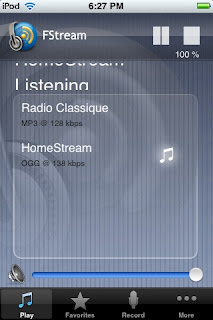
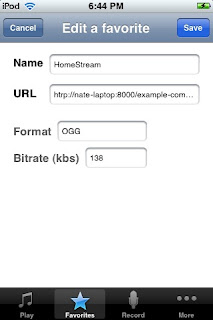
Actually I discovered a player for iPhone/iPod Touch that will play SHOUTcast streams, and works quite nicely with this setup called FStream. You can download and use it for free by searching for the name in iTunes or the device App store. Once installed, simply add your URL stream as a favorite, and select that stream in the main screen to play. You can tweak a setting that will allow you to time-shift when pausing just as with TCPMP mentioned above (look in the More menu). You can also record streams with this tool.


Credits:

Sources (Bibliography/credits):

How-to stream cast with RS by Javier Rodriguez: http://javier.rodriguez.org.mx/index.php/2006/06/10/griffin-radio-shark-icecast2-on-debian-gnulinux

How-to Play RS on Deb Linux by Javier Rodriguez: http://javier.rodriguez.org.mx/index.php/2007/05/20/use-the-radioshark-2-under-linux-shark2c

New RS 2 code by Hisaaki Shibata (on Javier’s site): http://javier.rodriguez.org.mx/code/shark2.c

Original RS Linux how-to and shark.c: http://wiki.linuxquestions.org/wiki/Audio …code by Michael Rolig

Good example of using Linux to record, play and time-shift using RS: http://whats.all.this.brouhaha.com/2006/01/18/radioshark-in-linux/

Web-site that allows you to control a real live RS tuner over the net: http://www.radioyakima.com/index.php

Saturday, December 13, 2008

Merriam-Webster Dictionary Review

HPIM03522 There are some things I like about lugging around a real dictionary: it requires no power source, and you can quickly flip to a section and scan page after page. In fact, I would argue that technology has yet to match the human hand/eye coordination and acuity for quickly scanning through written documents, but that’s another post. Actually finding the word you want in a real dictionary can be tedious and time-consuming compared to searching for the same word with an on-line tool (like dictionary.com), and well who really wants to lug around a book anyway? Why not simply install one on your iPhone or touch instead…

Noah Webster published his first English language dictionary in 1806.  The Merriam-Webster revisions to his popular work followed around 1840 (started by publishers George and Charles Merriam), and the “Collegiate” series of dictionaries began in 1898. The 11th edition includes over 225,000 definitions, and over 165,000 entries (source: wikipedia.com). Of course today, dictionaries and encyclopedias of every stripe are available via CD/DVD media, web browsers and desktop widgets (go to Merriam-Webster.com, for example). So why do you need a local version eating up some 35MB of space on your iPhone or touch, eh? Good question.
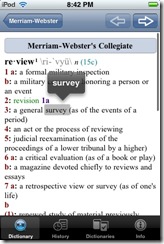
photo2

You probably have noticed a lot of things in your life suddenly center around using iPhone or touch--you want info on the go and always at hand. Maybe you’re a traveling scrabble player, for example? Well, Paragon’s version of Merriam-Webster is a pretty spartan but faithful rendition of the real thing. For a price, ($24.99 in the app store), which seems a little high to me, you can ensure that you always have the right word for the occasion.

Using Merriam…

Considering the iPhone and touch capabilities, I would have expected a little slicker implementation, and more features. For instance, the on-line version (Merriam-Webster.com), like Paragon’s version, also includes the ability to tap a word in a defn, but instead produces a pop-up research bubble with results (instead of re-directing you to a new page). Another great feature in the web version is the ability to play audio clips of words (being spoken) to indicate pronunciation. However, a new version of Paragon’s “Merriam”  has just been released with some added tweaks.

photo5

Using the dictionary is quite simple. You start typing in the word you wish to look up in the top search block, and word hits start appearing below as matches are resolved. Tap on a hit to view a definition. To my disappointment, I could not rotate the app to landscape in order to type more efficiently.
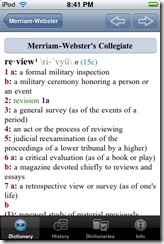
photo3

You can then further tap on any word in the definition result to view a subsequent definition of the new word selected. As you navigate through the dictionary, it saves a history of your searches, so you can use the arrow keys (top right) to navigate to past results. There is a history page that displays past word searches in a list view (see below), and the history is preserved even after closing the app.

photo1

The new V.2 search functions include fuzzy and wildcard search features that are similar to using a search engine. For example, if you don’t know the exact spelling of a word (probably not unusual if you are looking it up), you can use wildcards to produce search results of words with a partial match, or do a fuzzy or “similar word” search to find words that have a similar spelling structure. See below for an example of a wildcard search in action…I know, it’s riveting, is it not, but do try and control yourself…
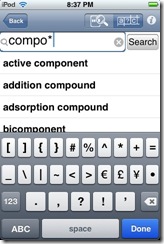
photo6

There are some aspects of the Merriam-Webster dictionary that could use improvement, in my book (clever that, eh: ”in my book”—oh, nevermind). The search results cannot be sorted, so at the least, I would suggest a quick navigation feature be added like the one already used to navigate Contacts on the iPhone—i.e. via a letter index on the right—otherwise, I might get tired of scrolling constantly through lists. Result lists often caused jerkiness on my iPod touch, and search results for popular definition phrases appear to not be indexed, or at least in one case were not resolved (i.e. “test the waters”). I feel that this dictionary is adequate, but could use more tweaking to be truly useful over other reference tools I’ve used. Go here to learn more about Paragon’s extensive reference, and text entry software titles (available for multiple mobile device platforms), and simply do a search in the iTunes application store for “Merriam” to find the application reviewed above.