Featured Free Software

Showing posts with label Windows. Show all posts

Sunday, July 01, 2007

Scary phishing attempt...beware!


I'm an evangelist about the danger of e-mail spam and phishing attempts crafted to lure you to click on links in an e-mail (I'm always warning my wife not to click on e-mail links), but this one had me doing a double-take. My family and friends send me e-cards from time-to-time, and although I feel that e-cards are by and large as annoying as spam, I appreciate the sentiment (and will often go to the e-card link). I received this e-mail the other day telling me "you received a postcard from a family member", and without thinking I opened the e-mail. Fortunately, there were several suspicious clues that jumped out at me before I clicked on anything, but by and large the message was pretty well crafted (netfuncards.com is a real e-card service). Read on to learn more about this clever phish...
See the mail details below...I removed all the IP addresses in the URLs (i.e. 10.34.121.10 for example) so no chance of anyone accidentally going there:

FROM: netfuncards.com [jig@iland.net]
Good day.

Your family member has sent you an ecard from netfuncards.com.

Send free ecards from netfuncards.com with your choice of colors, words and music.

Your ecard will be available with us for the next 30 days. If you wish to keep the ecard longer, you may save it on your computer or take a print.

To view your ecard, choose from any of the following options:

--------
OPTION 1
--------

Click on the following Internet address or copy & paste it into your browser's address box.

http://IPADDR/?2168387b63c7271dc60eae57a4a6c198

--------
OPTION 2
--------

Copy & paste the ecard number in the "View Your Card" box at http://IPADDR/

Your ecard number is
2168387b63c7271dc60eae57a4a6c198

Best wishes,
Postmaster,
netfuncards.com


The first thing that jumped out at me (and you too, probably) is there is no name included of who in my family sent the card. The second thing that should alert you is that the email address is not even in the same domain as netfuncards.com (iland.net), which is unusual. Then, there's the fact that a FQDN (like netfuncards.com) is not used in the links to my card. No respected web-service on the Internet would typically use anything but an FQDN in such e-mails. After some forensic investigation of the supposed e-card hotlinks themselves, I found that they were actually registered to some cable provider in the Netherlands (netfuncards is D.C. based). Other users online who have posted warnings on this same phish say the actual web-sites try to coax you to download or install an "Outlook plug-in". Finally I visited the real netfuncards.com site and cut/pasted my "e-card number" into the required field as instructed and of course could find no e-card. Busted! Remember, if someone you know, or a site you can verify sends you a link, it pays to still be suspicious. When something appears out of the blue unsolicited, look it up online. Perform a Google search of the subject line text, and read what other users may have posted on it. Chances are the first page results will reveal if it's a scam. Never visit a link directly from an e-mail. Go to the site's main page and try navigating through the real website instead of clicking through from the e-mail. It just might save you from a virus or worse. I'm pretty good about this stuff and admit to being a tad paranoid, but this one came pretty close to fooling me at first.

Saturday, June 23, 2007

Radio Shark 2, a TiVo for your Radio...and more


My kids are awesome. They bought me a new computer/radio toy (the perfect mix) for Father's Day. OK, I know, I know...I'm a geek, and radio is boring, but WAIT!!! ...here's a taste of the radio-control prowess I now posess via my meager computer: I can pause and rewind live radio with the Radio Shark (I dont mean herky-jerky Internet radio stations either, I mean FM/AM stations in real-time), just like TiVo--if I want to hear a song again, I just hit rewind. RadioShark records on my computer (constantly in the background) just like the original, and I can move back and forth through the stream or return to the live broadcast. Second reason I love it...I can let radio Shark record away for hours and hours, and it will go back at intervals and sift through the data it has recorded and analyze it. It looks for the song patterns that real music will produce in the stream and isolates them, and converts them to mp3s. I can download the songs to my iPod, throwing out the commercials and DJ blather--and, if the FM station is trasmitting song ID tags in the FM transmission (some stations are now doing that), I even get all the song information as well (or input it manually).

Recording with SnapTunes

Wait!!! ...There's much more!! Radio Shark's software (which you guys can also download for free called SnapTunes One) even works with Internet Radio, and will search out songs and programs the same way as on regular radio, and guess what? It even supports line-in recording, so you can use your own radio tuner with it. Yep, that's right...you don't even need a Radio Shark. Simply connect your radio tuner to the line-in port on your sound card in the back of your computer. Tune in a radio station and start recording with SnapTunes, and walk away and leave it go for several hours. It may take a few days of experimenting for it to find the pattern in your local stations, but eventually it will learn. The quality isn't as high as a CD, but it's exactly as good as the original radio station reception (which is good enough for stereo quality).

RadioSHARK 2 Features

# RadioSHARK 2 gives you control of how and when you listen to your favorite radio shows.
# Record any AM or FM radio broadcast
# Record what you are listening to at the moment or set the RadioSHARK 2to record at a specific date and time
# Allows time-shift recording to "pause" live radio, although this recording cannot be saved as a file. The audio is kept in a temporary space on the hard drive for playback.
# Records in AAC, MP3, WMA, and AIFF files
# USB connectivity
# Mac and Windows compatible
# Software for both platforms is included

Saturday, June 16, 2007

Getting music on your iPod without iTunes


I have 2 iPods, and my wife has a Nano. When you have a bunch of them, it gets confusing whose iPod is registered or synced to which computer, etc. Of course, my wife's iPod was set up with a computer that my daughter took with her when she got married and left home. We are probably getting my daughter a Nano for college graduation as well...shhh, she doesn't know yet (and I doubt she will read this, since it's not on MySpace). So many iPods, and so few computers. My old computer doesn't even have iTunes, and I'm trying to keep it relatively clean of bloat, so I needed to find a way to update/add music to the army of iPods I have laying around. I found a great utility called YamiPod (Yet Another Manager for iPod), which does exactly what I need.
YamiPod is free, but the author encourages donations, and it is worth it. Coming in at a svelt 5mb in terms of download size, and using only a tiny percent of processor/mem to function are some of the things that make this iTunes replacement very attractive. Uhh, "replacement" is a little strong in this case, as you will still need to go through all the rigamarole of using the iPod installer, and iTunes setup when you initially configure your iPod, as well as sync some music to your pod before Yamipod will work. It's great for me (simple song-sync from a home computer sans iTunes), but for folks who want all the bells and whistles, or who have bought a new iPod in need of configuration, will still have to rely on iTunes. Here's a list of some of the great features in this lightweight alternative:

# stand alone program, no installation required
# iPod is automatically recognized
# mp3 and AAC files can be copied to/from iPod
# read/write access to mp3 id3 and AAC infos
# playlist support (On-The-Go included)
# playlists import (PLS,M3U)
# playlists export (PLS,M3U)
# full unicode support
# auto-download new versions
# advanced song import/export settings
# 2 restore features
# built in music player
# iPod informations
# 2 search features
# remove duplicated tracks
# find lost music files
# easy ratings edit
# PC to iPod synchronization
# create and edit notes (with unicode support)
# automatically update song playcounts
# News RSS and podcasts to iPod upload
# Growl support (Apple only)
# export song lists to HTML or plain text files
# multiple iPods support
# Last.fm support

Saturday, May 26, 2007

Norton Anti-Virus Dumped!! How secure is your data and identity really?


Against all the tech-rag conventional wisdom, and my own good sense, I finally grew tired of my computer crawling after startup for 20-30 minutes, due to the ridiculous scanning shenanigans and update activities of Norton Internet Security. I first disabled it for a couple of days to see what would happen, and when hackers didn't drop on my computer like hawks waiting to strike a wounded rabbit, I...(oh dear!), completely un-installed the bloated thing. I could not believe the difference in performance...Read on for the full report of some ways to get back your CPU, and not leave yourself totally wide open to attack. This is the first in a series on home security for the non-guru type...
Internet security is a much misunderstood animal. Most folks don't realize that the team of cutting-edge hackers working out of China (or some other shady underground government bunker) whose job it is to break into every computer in the world and turn it to a zombie probably can't even see your computer on the Internet (even if they wanted to, which they probably don't). Unless you do something stupid like visit a virus-infested porn site, or open a malware attachment in an e-mail, you are probably safer than you imagine. In fact, I submit that you could purchase and bring home "almost" any new computer running XP or Vista, turn it on, and run it with minimal risk of infection. It would "probably" go completely unmolested for quite a long period of time, believe it or not (remember I said "probably" and "almost")... Mainly if you didn't use it, that is. It's true... Once you plug a computer into a network that is in any form connected to the Internet, you run the risk of a computer break-in or attack, but here's some information the big security vendors won't tell you. It's not quite that bad. Most major ISPs today employ some basic security for you (else they risk getting hacked, and losing mucho business). Your ISP probably has a strong NAT/Firewall device--Network Address Translation...basically hides your computer's real IP address and is usually coupled with a proxy and firewall. They have this in place to protect you and your neighbors from the bad guys out there on the Internet. That's not to say you are safe, mind you. Oh no, there is a real threat, but it comes mostly from your own Internet habits--the sites you visit, and the things you download and install. Or maybe even the habits of your neighbors...You never know when that teenage geeky kid down the street might start poking around inside your ISP's local network or even try to bust into your wireless hub. Running a fancy security product is only one piece of this puzzle.

Last year I got a new-old computer in an on-line contest. It was an old Sun Ultra-10 workstation. Old, but refurbished and running great. Being a UNIX bigot (and a Windows bigot as well...there are certain aspects of each platform that I love), I had to install it on my network and get it running, just to play with it. Many people may not realize you can download the Sun Solaris operating system free and install it. So I grabbed Solaris 10, and installed the basic workstation build on my Sun box, and had it up and running on my home network and even chatting, browsing, and e-mailing on the Internet in no time. So I got to thinking about security for it. It's not like you can go get Zone Alarm and install it on a Sun box. Like Windows XP, Solaris can run a module which does basic packet filtering (which is what a firewall does). This means the firewall process on your computer checks each incoming and outgoing network data packet against a set of rules you define. If the packet passes all your rules, it gets to go through, and if it doesn't, it gets dropped. The Solaris firewall module I used is called ipfilter, and is a little harder to properly configure than Windows, because it has a cryptic sort of shorthand config file that defines each rule (which you have to learn of course, and have to know some UNIX as well). It was a cool experience, because I had to learn basic firewalling techniques in order to do it correctly, along with ways to test my network security posture.

What I found is that the Windows firewall is not too shabby in it's own right, if you understand it's limitations. It only filters inbound traffic, so if you bring a trojan or a worm into your environment (by accidently clicking on something you shouldn't), Window's firewall won't stop it from running amok on your network. If the virus is sophisticated enough, it might even get around your other machine's defenses as well, and take down your whole network (this is usually what worms do, once they get in, they replicate across open ports between machines). Firewalls have to have some ports open or else your machines would hardly function at all. Trojans and Worms exploit this weakness.

So, we have the begining picture of the sum of your true home security posture. You buy a new computer, wireless router, and cable modem from your ISP, and set it all up. Out of the box, here are the strong security points in this configuration:

1. Your ISP is protecting your little home network enclave behind it's firewall.

2. Your Wireless Access point or router probably has some form of encryption and basic security/filtering (which many during setup will prompt you to turn on, or turn on for you).

3. Your Windows computer has a firewall turned on by default (both Vista and XP).

This is what is called, in security guru terms, a defense in-depth. Basically, without you doing any major re-configuration, reading a stack of network security manuals, or adding any additional software/hardware at all, you have 3 levels of protection between you and the bad packets that want to fry your hard drive (you probably want to check with your ISP to ensure they use a decent firewall before making this assumption, though). Sounds pretty safe, huh? There are still holes, count on it:

1. Your ISP can block problem ports and nasty public address ranges or sites known for malicious behavior, but they can't block everything. You can still visit a hacked web-site and bring a malicious software download right through their defenses.

2. Your router may not have all security features turned on, like MAC filtering for instance, which is a good step to take. This helps ensure only you and your family can get local access to your network (in addition to using the built-in encryption most WAPs provide)

3. Windows may have a firewall and even some basic form of memory protection against virus-like behavior, but it also has open holes in it's various applications, which a nasty bit of data can still easily exploit, allowing a virus to climb to the top of the application stack, elevate it's priviledges, hide itself from the OS (which is what a rootkit does), and possibly take over your computer or send your personal information to baddies on the Internet. Again, the most common vector is usually something brought in by a download, an e-mail, or a friend's memory stick. Last year, Sony was putting virus-like rootkit software on their own CD's which was infecting people's computers, and then hiding the malware from the operating system, which means you couldn't detect it running.

To make things worse, Windows has a bunch of stuff configured out of the box that are significant security risks. It shares out drives that you didn't know were shared (drive letters C$ or E$, etc. are typically shared out as Administrative shares, for instance), and has built-in accounts like the Guest account which would be known to a potential hacker. Programs or services typical to mere user-level accounts require elevated priviledges to run properly on Windows, so that when a virus can attack, it takes the higher-level access of the system account, with the ability to do more damage or take total control of the system. Admittedly, Vista is better in this regard than XP, but make no mistake, the hackers will find more. So what can a security program or suite of programs on your computer do for you?

I'd be stupid to say that you aren't better protected with an additional security program than without one, but only relatively so. Most security suites add a more robust firewall to replace the Windows one (inbound and outbound filtering). They are designed by professionals to be as turn-key as possible for the average user, while offering better protection and monitoring tools (adding another layer in your defenses). They also scan/monitor your computer files, processes, and registry for virus-like behavior in order to stop malicious intrusions cold. They are indeed your last line of defense in this regard. The weakness of these tools lie in their reliance on signature or config file updates--that they are mostly reactive in nature. The things they are scanning for may have already mutated into a different variant (meaning some hacker tweaked the virus to remain undetected, or simply found a new hole to exploit). If the new virus hits your system before the virus scanner can get updates, it may very well escape detection. Anti-virus, Anti-Spam, Anti-Adware, etc. all work on really the same basic principal as a firewall, just at a higher level. It's important to note that they are signature based, which means they react to a known pattern of behavior that is known to match virus and malware types in the wild at a point in time. Like your OS and applications, they need to be updated constantly to be effective.

So, you might be asking yourself at this point, why then Nate did you completely remove your Norton Internet Security program? More protection is always better, right? Maybe, but that depends on the network and the computer. It's a matter of acceptable level of risk (and performance) when it comes to implementing security. Any security pro will tell you that. My Windows home computer is almost 5 years old and slow compared to today's machines (although it screams for what I need it for). It has some music, movies and family pictures on it, for which I have backups, and I never use it for important scary stuff, like on-line banking. My work laptop, which is newer (and faster), and loaded with important proprietary corporate data has a Firewall, Ad-ware scanner, the works (Norton actually), and an encrypted hard drive in case I ever lose the whole thing. So in short, I felt the performance hit I was suffering at home by running an additional firewall, and all the other Norton startup activities, etc. was worth the risk of downgrading the security there a bit. Here's what I do to mitigate this lower security posture:

1. I always install patches for Windows and it's applications as soon as they are available. I have Windows update set to automatically download updates (but let me choose which to install).

2. I still run a virus scanner, but a more lightweight one. I am now using the AVG free version. It seems to work reasonably well (though I know it's not as reliable as NAV), but it has made my home computer usable again from a performance standpoint.

3. I periodically monitor my router activity (most home access points/routers have some logging function in the setup web-pages used to configure them), or just note the level of activity on my WAP. If you develop a feel for how much and where most of your traffic is going, it's often easy to spot something unusual.

4. I make sure I have Windows firewall enabled and I monitor it. There is an option to log the activity on your firewall, and I suggest using it. Every system administrator who has had front-facing servers on the Internet knows how important it is to monitor them. This is equally true at home.

5. Most important...I never download stuff and just open it. I manually scan it first. I also never open attachments in e-mails from untrusted sources, or that I don't expect to receive.

6. I am a responsible web-browser. If I think a site is doing something sketchy, like re-directing me for no good reason or attempting to run script when it shouldn't need to, I kill the browser session. Simple as that. I go mostly where I know it's safe to go on the web. My browser is set to alert me of scripts attempting to run. Most are harmless, and if I have high-confidence in the site I'm visiting, I'll allow the script to run, if not...it doesn't run. I use Spybot S&D to scan for spyware and adware on a regular basis and keep it updated, and flush all my caches on a regular basis.

7. I turn off my gear at night when I go to bed.

In the final analysis, I'm not as secure as I was with Norton, but then I also feel I am secure enough for the purpose of using my home computer. My computer runs remarkably faster now and as long as I continue to be vigilant, the chances are low that I will have a major security incident. There is still a risk that I could get slammed even before I finish this post, but it's a risk I'm willing to accept. Norton and many security suites on the market are great, and if you want more peace of mind and can accept the performance hit, I recommend them, but remember this...Even the best scanner/filter is not 100% full-proof against attack. Your best possible chance of avoiding infection or worse (stolen credentials, identity information, etc.) is to have a multi-faceted approach to securing your system. You have to monitor your system, and know what it's normal behavior looks like. Stay away from the Internet back-alleys, and teach your family to do the same. Just basic common sense really, and you might find you can dump some security software bloat, too.

...Stayed tuned and next time, we can delve a little deeper into monitoring techniques for your home systems, and investigate some basic XP lockdowns.

Sunday, May 06, 2007

Tweak XP and Mobile


This month (which is about how frequently I have been posting on blogger) I get back to tweaking my old PC (an old 2300 series Dell Dimension). Alas, I finally completed a basic set of themes/skins for Windows Mobile. Handheld users can get these by visiting my home page here. Enough of that nonsense for awhile. We were once upon a time talking about customizing XP themes, tools, and other eye-candy (especially making them look Vista or Mac-like without buying an expensive new computer). Let's look at a great XP interface enhancer I use and love, which is available for free download, called ObjectDock (from StarDock.com). Also in this installment, a neat little performance monitor called TinyResMeter, and 2 not-so-great add-ons. Who needs the fancy gauges in Vista. I just want to know how much of my CPU is being used without opening task manager.


First off, to give the reader some background on why I post this stuff, I subscribe to at least 4 print magazines that are computer or gadget-related (PC World, PC Mag, EWeek, Computerworld, etc.), and a ton of similar RSS newsfeeds and columns (thanks, Bloglines). I work on computers for a living, and have been doing system administration, testing, and integration for government and military computer systems for about 15 years now. I have seen a lot of technology come and go, and I make it top priority to keep abreast of all the latest tech resources. In other words, I scour all this stuff, try it out, and weed out the crap that doesn't work so well. I personally own old hardware, and usually keep it running until it is completely un-serviceable or dead. I still have my son's 1st generation iPod (he probably dropped it), and after replacing the Hard Drive almost 2 years ago, it still works great. I am a firm believer in optimization, and making the old look new again is an important aspect of this, but not at the expense of performance.


More Program launchers are admittedly something Windows could do without. I mean, why not just use shortcuts on the desktop, or the Windows Start menu? One reason a tailorable launcher is useful is screen size. I like my application space to be as uncluttered as possible, and if I need to start a program, I don't want to minimize running apps, or click through a bunch of links to do so. Desktop shortcuts are passe, and since many program installers by default add a shortcut, can quickly fill the desktop with junk. Many XP users may not even be aware they can create their own custom launchpad using the "Quick Launch" feature in Windows without any add-ons what-so-ever. A Quick Launch menu gives you the convenience of desktop shortcuts, but in a compact, manageable window you can place where you want on the desktop. To turn on Quick Launch (if not on already), simply right-click your Windows taskbar, select toolbars, and turn on Quick Launch (the "Desktop" option in this menu will work in a similar manner, but show all your desktop shortcuts). Once you've enabled them in the task manager, you can simply unlock your task manager toolbar, and drag the box out to the desktop. You now have your own little custom desktop launcher, which you can add/remove shortcuts to as you wish. You can create multiple launchers this way (say one for office apps, one for games, and one for Internet apps, etc.). Now if you want to turn off the main desktop shortcuts, simply right-click somewhere in your main desktop, select "Arrange Icons By", and then select the "Show Desktop Icons" link.


OK, so what?! Program launchers are useful, but not much cooler than a bunch of cluttered icons on the desktop. Well, Quick Launch is kind of boring from a feature standpoint, which is where add-on launchers come in. My personal fav is ObjectDock, but there's practically a cottage industry for helper, launcher or other program running assistance/management, etc. Some like ObjectDock provide a stand-alone space in which they work, and some integrate with other applications, but a word of caution. Add-ons can and some likely will have adware (maybe even malware) tagging along, and might send your private information to external sources, so make sure to research the product in question before downloading and installing it (I usually look on sites like Download.com, or Softpedia.com, and read the reviews by users). Browser toolbars and the like are especially bad for this, also known as Browser Helper Objects (like search bars and the like). ObjectDock has proven to be one of the most useful, excellent freebies I have found yet in this category. It doesn't just give you an awesome launcher with cool, animated widgets (like a MAC), it shows you running programs, provides an expandable preview, includes cool widgets and flyouts like local weather and search and a ton of free themes, icons and backgrounds to keep your customizing away for hours.


So now you have your desktop all pimped with a nifty launcher, and you say OK...now I want to monitor my hardware/software. Can I add some Vista-like Gauges? Yep, sure can...I do this 2 ways, one is with actual hardware. I have a device that is a keyboard extension called the Optimus mini keyboard (a tiny 3-button OLED Keypad). It has the capability to display system resources:

..and software. My personal favorite is a little trifle called TinyResMeter:

Two things are immensely cool about this application. It truly is tiny in terms of size and memory usage (while running). You don't have to install it (no messed up registry clean-up/hooks to worry about later). It works really well, and is quite simple to setup and use. One drawback though was I had to add it to the startup environment manually to get it to auto-run when logging in. Here are the high points from the author's site:

Why TinyResMeter ?

- It is not the nicest Resource Monitor.
- It is not the most complete.
- It has no wonderfull and amazing graphical display provided.
- It has no installer.
(WHICH I LIKE, BY THE WAY)
...But...
- It is written 90% pure API, to keep it as small as possible.
- It do not require any extra DLL.
- It do not modify/write inside Registry Database.
- It use less memory and resources than other identical tools.
- It use a very simple but efficient small display interface.
- It do not use any installer that could increase EXE size, once downloaded you can use it immediately.
- It can be simple copied and executed on any machine with no need of installation procedure.
- It takes very little place on your screen.

Settings saving : You must quit TRM manually thru "Quit" menu in order to save your settings (then you restart TRM), this problem will be fixed in 0.97.


I lied a little. TinyResMeter doesn't match the slick-looking Vista Interface, but it does the same thing in a quarter of the run-time memory required. Finally, I recently tried out 2 semi-loosers. As mentioned previously in the article, I use resources like PC World, and a host of other blog and feeds to find this stuff (see this). Some, in my opinion are great, and some not-so-great. I recently found 2 that I could have done without. The first is a Start Menu enhancement called Vista Start Menu SE (which was like a Frankenstein version of the real thing), the second called Desktop Sidebar (a sort of sidebar widget utility). Both were second rate, bloated abominations compared to the excellent utilities I just went over, and they slowed my computer considerably. The Start Menu added an obnoxious "upgrade" button (to try and force you to get the full version), which I was always nearly clicking on. They were both clunky and caused more problems than the enhancements they tout. In the world of tweaking (especially for older hardware), there is a definite line between useful and attractive functionality and resource-hungry eye candy. The key is finding apps that strike that balance. The free version of ObjectDock never bugs you to upgrade, or attempts to trick you into clicking anything. It has never crashed my system to my knowledge, and has performance tweaks to make it work better on less capable hardware. Those are the right ingredients for virtually guaranteeing an upgrade and a returning customer without resorting to trickery.

Sunday, April 15, 2007

Tweak XP and Windows Mobile Update...


Sorry it has taken me so darn long to update this thread. Hello? ...crickets chirp... Anyone there? ...owl hoots... Well, in case you are there, I just did a monster write-up on all things tweakified for WM devices (Pocket PC, and Smartphone), so go check it out here, and I promise to now focus on doing the same thing here for the PC as well (ObjectDock, WindowBlinds, etc.)

Friday, March 16, 2007

Tweak XP and Mobile Part 2


Last week (or was it the week before?), I posted on tweaking XP and your device themes to make them look similar and just all-around cooler (check that full post out here). I gave some basic tips on patching the theme engine in Windows to allow custom theme packages to be used. This allowed you to incorporate theme elements that reproduce things like the Vista transparent window effects in Aero, or brushed steel finish of I-Tunes or Mac, for example. Finally, I outlined some basic tools for editing themes for your mobile device. Now let's expand on that a bit, and tweak XP/WM even further...I never liked that stupid "Start" thing in XP, so I changed it--and guess what? You can change it in WM too (sort of)...Read on for more tweakin fun...

Hacking the Windows Start Button
The first thing you need to do is to read up on using a tool called Resource Hacker. When I got it, it was a freebie, and appears to still be. It was written by Angus Johnson, and is a very useful utility for hacking into 32-bit executeables and changing certain application resource elements (like icons, and bitmaps). Resource Hacker then gives you the ability to re-compile the executeable with your changes. Sounds scary, and it isn't really, but please back up your system first (or at least the file itself). It turns out, the ugly default Windows Start Menu text and image is simply one of many resources compiled into "explorer.exe", which is the program that presents the Windows desktop. Using Resource Hacker, you can edit the ".bmp" images used in the Start menu, and even change the "Start" title itself.

My "tweaked" Start menu


Resource Hacking the Start Icon


Once you learn a little about Resource Hacker, and tweaking Windows system files, it's a cinch to add your own custom images and text to the Start menu as indicated, or even tweak the appearance of some of your favorite applications. Explorer.exe is considered a special file worthy of protection by the operating system, so you have to go through some acrobatics with Window's built-in system protection, and then boot to safe mode to force your changes. See the following overclockersclub article on hacking the start menu for more information and a step-by-step, and check out my article on tweaking Windows Mobile application icons in this manner as well here.

Tweaking the WM interface
To do this kind of thing on your handheld is not quite so easy, so to keep it simple and easy I use a combined task manager/theme tweaker program called Wisbar Advance. Wisbar was one of the first interface tweakers you could use to dress up the boring default look of Windows Mobile, and it runs on PPC 2002 though WM5. I shouldn't actually call it a display tweaker, because it's more of a WM display wrapper that runs on top of the default WM display. It has a lot more bells and whistles than it's skins, and is practically a complete interface replacement in it's own right, but I'll focus just on the skin capability for now. It's major drawback though, is that it eats up extra resources. There are a ton of on-line skins and themes available for Wisbar, and it's popularity has spawned a cottage industry of themes to go with it. In addition to the themes that come installed, and available for download from Lakeridge, you should check out these sites, as well as the WA skins forums:

1. DeviantArt
2. piXel's themes/skins
3. Juni's themes/skins
4. Lightman's themes/skins

Even with WA eating up some extra resources, it becomes apparent from the shots that the enhancement to WM is worth it.

Before WA...boring

After WA...better


Tweaking Wisbar Skins
The really cool thing about Wisbar is that the displayed interface elements and settings are a collection of easily identified image files and a single property file (a ".skin"), all located under the theme main directory. The property file maps the images and settings to be used in the interface. The skins are accompanied by sounds as well (in a separate folder). The Wisbar site has a handy skinning guide to help you get started, and it really is pretty easy to take an existing skin template and modify it for your own taste (although, remember you are editing someone else's work, so don't try to claim it later as your own). The WA settings allow you to easily import a custom theme, and it would be awesome if WM natively supported these kinds of changes.

Setup a whole new custom theme by tweaking the images/config, etc...

Pick a pre-defined theme or import a custom one...


So, we can now pimp out our desktop and handheld displays with ease. Next week, we'll look at even more desktop/device gizmos like Object Dock (for those Vista-like widgets), Mobile Shell, and more tweakers...Stay tuned!

Friday, February 23, 2007

Tweak XP and Mobile Windows


I love to tweak stuff, especially computer or gadgety stuff. There's nothing better than pimping your mobile or computer screen, and basking in the jealous ooohs and ahhhs of passers-by. It also releases your inner muse. This will be the first in a series of articles on tricking up your computer and gadget displays. I have so many custom widgets, and gadgets on my work PC, that my cube-mates have swore I'm running Vista, Apple, and even Linux when I'm still pounding away on old XP. It's nothing new really, just a few tweaks I picked up here and there which don't require buying any additional software by the way (for the most part anyway). Click on the Read More link below to learn about Themes in both XP and Windows Mobile and how to trick out your computer, create a computer/device common theme, which can be "cute" if you keep your mobile docked while at work. You're guaranteed to start hearing inane comments like, "Oh look, your PC has a little brother!"

First off, let me make clear I am a consummate rip-off artist. I rarely create my own artwork, and why should I? There's a ton of cool-looking stuff on the Internet for free, as long as you don't make any claims at having created or try to profit from someone else's hard work, re-distribute, etc. it's perfectly fine to incorporate into your desktop/device themes (as long as the author doesn't make a legal stipulation against such use). So, let me make clear I didn't create the backgrounds and graphics in this article, and am not trying to take credit for them. It's really surprising the amount of icons, cursor sets, desktop backgrounds, and more out there for free download. Some tweaking resource sites you must check out:

1. DeviantArt:the definitive computer art website for all things skinnable, theme-able, backgrounds and design related.
2. Foood's Icons (now called "iconaholic"): Icon site for tricked out looking Icon sets, themes, and more.
3. Customize.org: More great themes and Window's visual styles.


To start off tweaking Windows you have got to get the XP Theme patcher here for SP2 and follow the instructions on the download site to install it. This will allow you to use custom Theme elements in XP SP2. In case you haven't worked with XP Themes or haven't a clue what I'm talking about, right-click on the desktop and select properties. The first tab in the properties window is the Theme tab. MS gives you a Classic or XP theme to work with...one notably called Luna which includes the typical ugly green start menu when using the default XP style. The XP theme file (you can save your own themes) includes all your desktop tweaks for background and GUI styles, etc. This is an exciting aspect of XP, until one realizes there isn't a way to do much customization of the look and feel of the windows and menus without a product called MS Plus (which was a greedy hook by MS). So someone came up with a way to trick the Theme mechanism into accepting customizations as "accepted by MS" by developing the patch mentioned above. Say, for example you want your Windows menus to have the eye-catching colorized Apple OS buttons, brushed-metal finish and rounded corners or the slick, smooth iTunes interface?

Well, if it wasn't offered by MS Plus, pretty much no way to do it natively on Windows. There are third-party apps that will allow you to do this kind of tweaking as well, but they run on top of Windows and use up extra resources. There are many sites that offer free, attractive MS Themes and styles (including the Apple look-n-feel mentioned above) that will function perfectly using the simple theme patch.

Adding Custom Themes to XP:

The latest theme I'm using, which you see featured in the screenshots here, is called Black Mesa V2, and can be obtained from Customize.org (the author is Eric Banton). The theme includes beveled and nicely shaded menus and buttons, a Start Menu custom icon, custom-colored app buttons, colorized folder listings, crisp fonts, and a set of LINUX Fedora cursors that are way cool. See more shots below:

My Start Menu:


Files and Folders:


Basically after patching the Theme mechanism in XP, you simply download the Themes and styles you like--or if you're really into this, you can create your own, but it's a lot of work. Themes are usually bundled in a ZIP file with styles, a background, and any extras the developer threw in (which might include fonts, cursors, icons, and even application skins that go with the theme). The packages can usually by extracted to your Windows\Resources\Themes folder. Once installed, they should show up in the list of themes in the properties window. If the theme elements don't display as expected in the property window preview pane, you either didn't patch your UXtheme.dll as described, or the theme supporting styles and shell folders are not correctly installed. Some theme packages will include their own installers, but most have an accompanying "readme.txt" file to tell you what to do, as each may be a little different. When I speak of "styles", I mean a defined Windows style (a ".msstyles" file type) for that theme which will accompany the package typically in a folder just below where the ".theme" file resides in Windows\Resources\Themes. See Screenshot below for the folder setup for the Black Mesa Theme as an example:


Themes on the Handheld:
Once I install a theme on my desktop, I use the desktop background that came with it to create a "mobile version" for my handheld (running on either my Windows Mobile 2003 or WM5 devices). Here's how...

1. Find the background image: If there wasn't a desktop background included in the theme or style package (usually located in a folder labeled "wallpaper"), I find a suitable one on-line that fits the theme decor or generate my own. This can be a picture you take from a digital camera, a web-site graphic, a scanned image, or a home-grown drawing you create in a graphics program like Adobe Photoshop. I've even made my own background images in MS paint, which weren't too shabby.

2. Tweak the image: You can use most typical image formats like .gif, .jpg, .bmp or .png for your mobile today screen background (the equivalent of the desktop PC background for the non-mobile readers out there). I have used all of these formats, but prefer png because you retain good image quality with superior compression. The MS Office 2003 suite includes a really great, easy-to-use picture utility called Picture Manager (under tools), which provides just the right blend of editing features to re-size, and crop images as needed (a PC desktop background might be a little large for the small screen of your mobile).

3. Create a theme file: MS used to offer a free tool for creating device themes which would allow you to select images and do some cropping tasks as well (you can still find it on download.com). It would also allow you to manually adjust the menu colors and fonts to complement your new background and save that to a mobile theme file (a ".tsk" file). The free tool is called the Microsoft Pocket PC Theme Generator but it is limited to WM2003 versions and earlier, and requires you to go through many tweak steps to generate and get your themes right. SPB Software offers a free add-on that enhances and extends the MS generator to include SPB today plug-ins, (like the battery, and memory icons on the today screen in Pocket Plus) as well as VGA and landscape compatible themes. With these tools, you can do a pretty fair job of creating a reasonable facsimile of your desktop theme on your 2003 and older devices. So far we have stayed in the "free-zone" in this process, but if you're as serious about themes as I am, you might spend some money at this point, especially if you own a newer device.


4. Transfer your new Theme: This is really as simple as copying the .tsk files to your device "My Documents" folder in main program memory, but the freebie MS Theme generator will also handle that step for you once your finished with your edits.

Use a Real WM Theme Authoring Tool:
Thememaker IMHO, is probably the theme author's application of choice for generating themes for Windows Mobile. They not only have versions for Pocket PC and Smartphones, their products support landscape, and square-screens, WM2003 Standard Edition, VGA, QVGA, and WM5 themes. I use both the Thememaker M and X versions, which are $16 and $29 respectively, because they each have their own strengths, but I recommend at the very least buying the M version if you're doing this on a WM5 PDA device and don't want it to be too painful. These products make theme generation such a breeze, I can't adequately put into words how useful they are. For one, they include a theme authoring feature called "auto-colors" generation. Basically the application creates a color scheme for your menus and fonts based on the predominant colors in your background image. The Auto-Color feature usually picks theme colors pretty well for my taste, but if you want to further tweak the image, menus, etc, both products offer superior editing capabilities, and the X product is practically a version of Photoshop for device themes. These tools also make the process of moving, listing and previewing themes in landscape and portait mode a cinch. I like having both products, but if I was to have to pick one, it would probably be the "X" product because it does it all! In the case of setting up a Black Mesa 2 mobile theme for this article, all I had to do was create a new WM5 theme in Thememaker M, re-size and center the background image (from the desktop PC image), let the auto-color picker select my menu/font colors, and send the theme to my device. SPB Pocket Plus has a handy today switcher that allowed me to quickly switch to my new theme (which now closely resembles my desktop theme). Oh, and finally I snapped all the screenshots using an excellent remote control application called SOTI Pocket Controller...

My Desktop/Device Display: PDA in SOTI controller on the left, and the Thememaker editor on the right


Stay tuned for my next installment on more desktop and device customizations. Maybe we'll tweak the Windows Start menu (by hand...uh oh!), and talk about Window's Mobile Shell, Wisbar, and other mobile interface tweakers, and how they stack up...


Friday, February 02, 2007

Vista Slow Part 2? Finally a useful comparison...


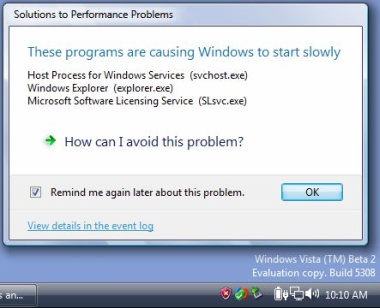
A while ago I was ranting about Vista being slower than XP in certain situations (according to a PC World comparison). Part of that rant was aimed more at the test itself (Vista vs. XP...who cares--Both are pigs, right?). Well, a very tech-savvy dude named Steven J. Vaughan-Nichols loaded up his recently purchased HP (Vista Ready) PC in a dual-boot with Linux, and is doing a head-to-head comparison in detail of how the 2 are stacking up, from hardware compatibility to music playback and DRM issues. It is an eye-opener, and as a UNIX bigot myself am wondering if a few of the Redmond kool-aid drinkers out there might be a little shaken? Basic software Apps are next in his review, and since you can see the screenshot above showing Vista chewing up a big chunk of processor time and 1/2 a GB of system memory (doing nothing at all but looking pretty), I can't wait to see how much more hungry Vista is when actually doing something. Check out his review for yourself here...

Thursday, January 18, 2007

Vista Slow?


I recently read a PC World Article (Feb 2007 issue) titled "Vista: Not Slow" that goes on to add, "Overall, our test apps did seem to run slower with Window's Vista". Uh, but wait...you said "Not Slow" in a review that in fact reveals that XP is actually faster than Vista? I'm confused... All-in-all, the review reveals a mixed bag of results that left me scratching my head. Long story short, if you run Vista on older crap hardware it is much slower than XP, which accounts for Vista's monster hardware requirements. It apparently does better when loaded up with the best dual-core CPU, and high-end graphics card (which OS doesn't?). The 64-bit version is slower than the 32-bit unless you feed it lot's of extra memory. The tests involved running single or multiple applications (Adobe, Far Cry, etc.). Mainly, I'm pissed that PC World didn't call it like it saw it. If the damn thing is overall slower, say so, and maybe get some feedback from MS (which probably would have been minimal, admittedly). Better yet, compare Vista to similar applications running on x86 Linux, eh? I'm not sure how useful a performance test of Vista vs. XP really is, in the final analysis.

My current x86 machine will barely run Vista, and by the time it hits the scrap heap next year or thereafter, I will probably have to run Windows Vista on something new anyway, and it will still be a pig, eating gobs of memory like a rottweiller in a meat-packing plant ("super-fetch"...puh-lease). Last year, I won an old refurbed Sun Ultra 10 in an on-line contest (shout out to bytekcorp.com) with 256MB of RAM (think 10-15 year old technology). I downloaded Solaris 10 free from Sun, installed it on the old warhorse and was chatting, browsing, and doing e-mail with it in like 10 minutes. It's a tad noisy, ugly, and for some graphics tasks admittedly slow, but it runs Star Office twice as fast as Office on my PC, and straight-up browsing or e-mail, fahgedddabouttit (and I'm talking x86 in the last 5 years). Oh yeah, it's also stable. Maybe PC World should stop being a shill for MS, and maybe MS should go shove Vista where...well you get the idea.